Features
HDF Explorer reads HDF, HDF-EOS, HDF5 and netCDF files. Data is first shown as a tree, then loaded and visualized only when you ask for it.
Fast access to data
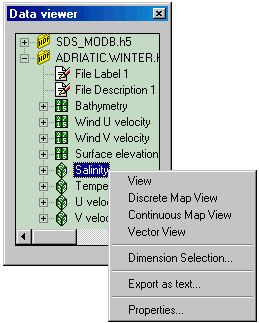
Once a file is open, its contents are displayed as a tree. Each kind of object has its own icon. Expand groups to see datasets and attributes, then right-click a dataset to choose how to view it: as a grid of numbers or as an image.
Grid views
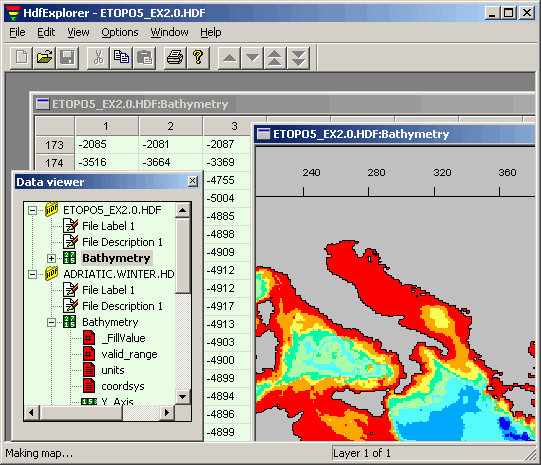
Numerical data can be shown in a grid, ordered by rows and columns, with the origin at the top left.
Scalar image views
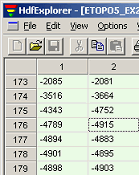
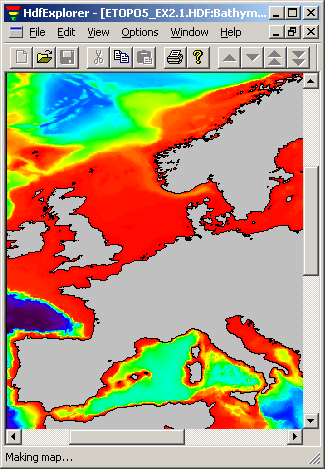
Image maps are generated from numerical datasets: each value is turned into a pixel colour. HDF Explorer includes several built-in palettes and can load a custom palette. Fill values are drawn in grey.
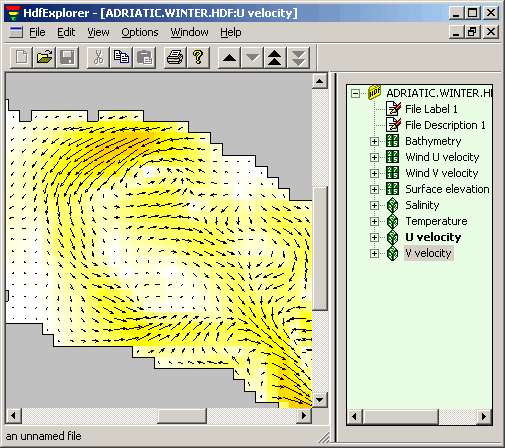
Vector image views
Vector images combine two scalar datasets, one per component. A typical use is drawing velocity fields such as ocean currents or winds.
Data export
There are two ways to export data: to a file, or to the Windows clipboard.
- Any dataset can be saved as an ASCII text file with Export as text… on the floating data viewer menu.
- Any scalar or vector image can be saved as a bitmap with Export as image… on the File menu.
- Images can be copied to the clipboard as a Windows bitmap (BMP) or Windows metafile (WMF). WMF prints at higher resolution.
- Numerical data can be copied to the clipboard as ASCII.